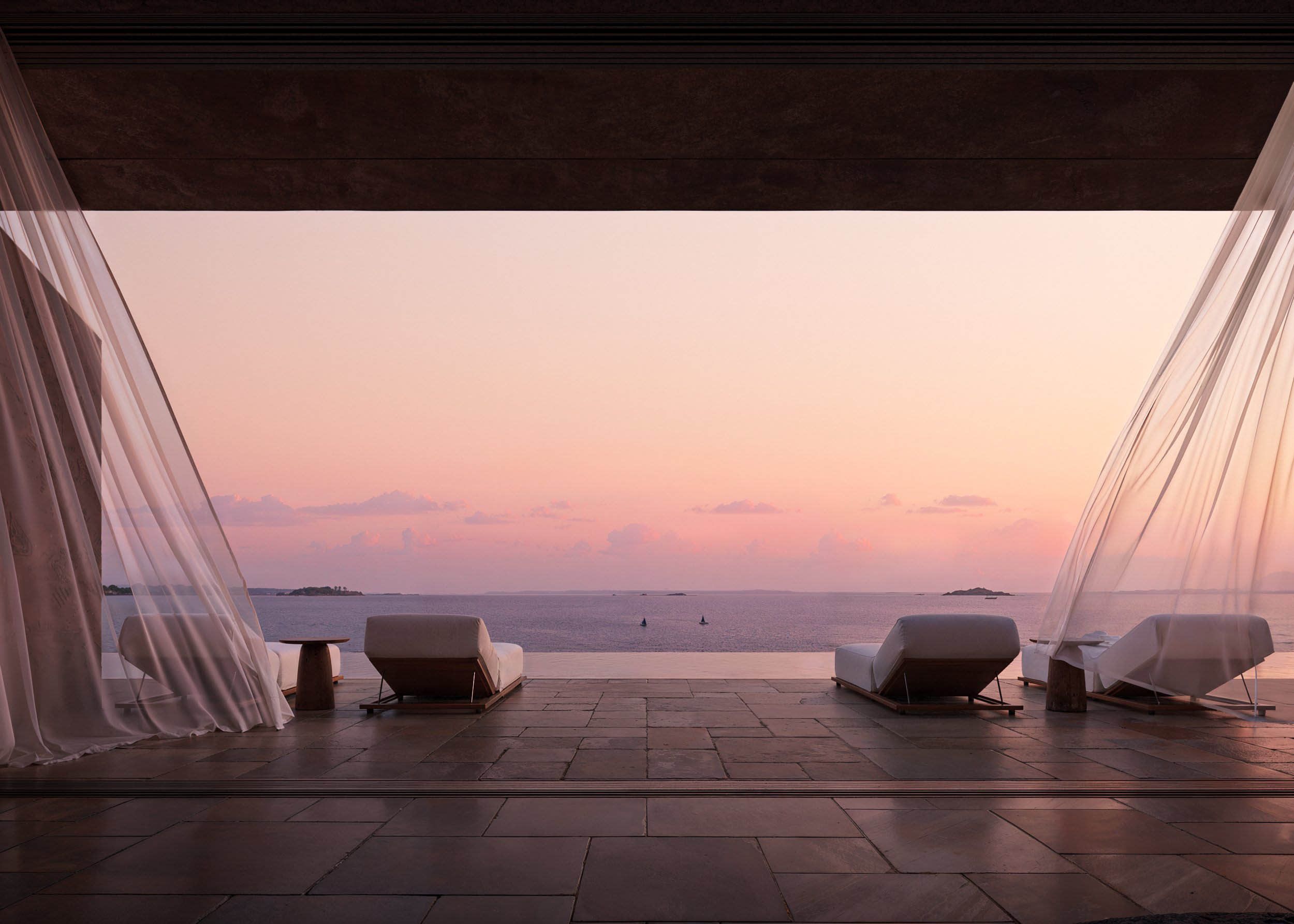
Moodboard Mastery: Organize and Visualize Your Design Ideas
Master the art of visual storytelling with Feel Design AI’s Moodboard Tool. Learn how to organize inspiration, explore color harmony, and visualize complete design ideas before transforming them into reality in AI Studio.
Introduction: Turning Inspiration into Intention
Every great design starts with a spark — a color palette, a photo, a texture, or even a memory.
But when ideas come from everywhere, organizing them can feel overwhelming.
That’s where Feel Design AI’s Moodboard Tool comes in. It transforms scattered inspiration into a cohesive visual story, helping you refine your concept, align your aesthetic, and prepare for seamless creation inside AI Studio.
Whether you’re designing a single room or a full renovation project, a moodboard bridges imagination and execution — showing not just what you love, but how it all fits together.
1. What Is a Moodboard and Why It Matters
A moodboard is more than just a collage of pretty images — it’s a visual strategy.
In Feel Design, your moodboard becomes the blueprint for your design identity.
You can collect images, color references, and style inspirations directly from the Explore Tab or upload your own photos. The AI then detects patterns — tones, textures, and styles — to help you understand the aesthetic direction you’re heading toward.
Why it matters:
Keeps your design vision consistent
Helps communicate ideas clearly
Saves time during editing and redesigning
Guides AI Studio in style and color interpretation
2. Building the Perfect Moodboard in Feel Design
Step 1: Gather Your Inspiration
Browse the Explore Tab to discover curated visuals — from modern lofts to cozy coastal bedrooms. You can search by mood, style, or material to find images that match your vision.
Step 2: Add and Organize
Simply click “Add to Moodboard” to save images directly into your project folder. Feel Design allows you to rearrange visuals intuitively, grouping by color, theme, or texture.
Step 3: Analyze Your Palette
Once you’ve added multiple references, Feel Design’s AI automatically recognizes dominant tones and material cues. This helps identify your project’s design DNA — perfect for ensuring stylistic balance later in AI Studio.
Step 4: Refine and Curate
A great moodboard isn’t about adding more — it’s about editing wisely. Remove outliers and narrow down to visuals that best represent your concept’s mood and purpose.
3. From Moodboard to Reality: Applying Your Vision
Once your board feels complete, Feel Design AI makes the next step effortless.
With a single click, you can transfer your moodboard style into AI Studio.
Here’s what happens:
The AI interprets your visual references
Extracts color schemes, lighting ambiance, and furniture tones
Generates initial renderings that match your chosen aesthetic
This means your design results already align with your curated inspiration — no need to start from scratch.
For example, if your board features Japandi calm with soft beige hues and low lighting, your first AI render will mirror those same atmospheric choices.
4. Pro Tips for Moodboard Perfection
Stick to a theme: Don’t mix too many styles. Cohesion beats quantity.
Use lighting as a guide: Include references with the lighting mood you want to recreate.
Limit your palette: 3–5 main colors create clarity.
Balance textures: Combine smooth and rough materials for realistic depth.
Review often: Your vision may evolve — update your board as your ideas grow.
Conclusion: Visualize with Confidence
Moodboards are your creative compass — turning ideas into a direction you can see, refine, and share.
With Feel Design AI, you don’t just collect inspiration — you transform it into actionable design intelligence. Whether you’re brainstorming, collaborating, or prototyping your next project, your moodboard is the foundation that ensures every design decision aligns with your vision.
F.A.Q.
What is a moodboard in Feel Design AI?
A moodboard in Feel Design AI is a visual collection of images, colors, and textures that represent your design concept. It helps you organize inspiration and define a consistent style direction for your project.
Can I add my own images to the moodboard?
Yes. You can upload your own photos or add visuals directly from the Explore Tab to personalize your moodboard and reflect your design preferences.
How does the moodboard connect to AI Studio?
Your moodboard acts as a visual guide for AI Studio. Once completed, the AI reads your selected images and extracts key colors, materials, and styles to generate renderings aligned with your vision.
Can I edit my moodboard after starting a design?
Absolutely. You can return to your moodboard anytime to adjust or refine your concept. Updates will help the AI improve future renderings and maintain consistency.
Is the Moodboard Tool suitable for beginners?
Yes. Feel Design’s Moodboard Tool is intuitive and easy to use, allowing anyone — from hobbyists to professional designers — to visualize their ideas effectively.