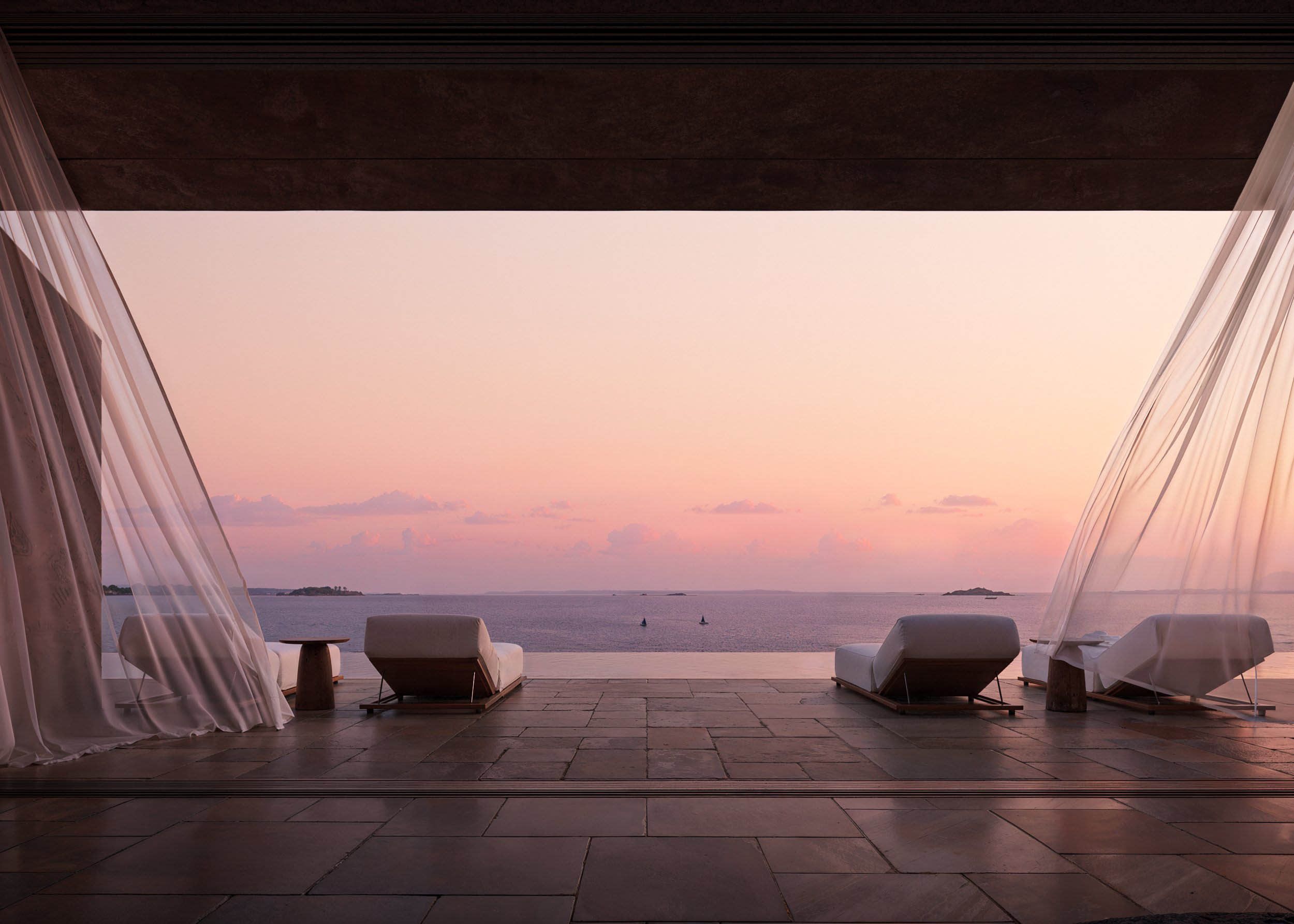
Why My AI Render Looks Off: Common Causes & Quick Fixes
Discover why your AI render may look unrealistic, distorted, or inaccurate—plus the most effective quick fixes. Learn how to improve lighting, composition, prompts, and reference settings in Feel Design AI for picture-perfect results every time.
Introduction
You’ve generated your design in Feel Design AI… but something feels off.
Maybe the lighting looks strange, the furniture appears distorted, or the style doesn't match what you envisioned.
Don’t worry—this is one of the most common experiences when working with AI design tools. The good news? Most issues can be fixed quickly with a few simple adjustments.
This guide breaks down why your AI render may look inaccurate and exactly how to correct it fast so you can start producing clean, studio-quality designs with Feel Design AI.
Why Your AI Render Looks Off — and How to Fix It Fast
Below are the most common problems users encounter and the exact steps to fix them.
1. The Input Image Is Poor Quality
If your uploaded room or object photo is blurry, grainy, or has poor lighting, the AI struggles to interpret details.
Fix
✓ Upload high-resolution images
✓ Ensure the frame is straight and not angled
✓ Avoid shadows blocking furniture or walls
Pro Tip: Take photos with even lighting—AI renders are far more accurate when the subject is clear.
2. The Prompt Is Too Vague or Confusing
Prompts like “modern style” or “redesign the room” don’t give the AI enough direction.
Fix
Use clear, specific descriptions, such as:
“Modern Scandinavian living room with warm wood accents, soft natural light, minimal décor, and neutral fabrics.”
The more details you provide, the more accurate the render.
3. Styles Don’t Match the Reference Image
If your input photo has a rustic room but your chosen style is ultra-modern, the AI may struggle to merge the two.
Fix
✓ Choose styles that complement the space
✓ Or upload your own reference style image
Tip: Use the Upload Style Reference feature for best results.
4. Lighting Looks Strange or Unnatural
AI renders often look off when lighting doesn’t match the original image.
Fix
✓ Describe the lighting in your prompt
✓ Use phrases like “soft shadows,” “even daylight,” or “warm interior lighting”
✓ Re-upload an image with more accurate lighting
5. Objects Appear Distorted or Floating
This usually happens when:
Furniture overlaps
The photo angle is too tilted
The AI misreads depth
Fix
✓ Re-upload a straight-on photo
✓ Use simpler layouts with clear spacing
✓ Use the Refine tool to regenerate only the distorted area
6. Textures Don’t Match or Look Fake
AI may misinterpret texture patterns (e.g., wood grain, marble, textiles).
Fix
✓ Add exact material names to your prompt
✓ Upload texture reference images
✓ Use “sharp details” or “high-quality textures” in your prompt
7. Style Output Keeps Changing Unexpectedly
This happens when the prompt and selected style conflict.
Fix
✓ Stick to one design theme
✓ Avoid mixing conflicting styles in one prompt
✓ Re-check your selected style filters
8. Cropping or Composition Looks Wrong
If part of the room is missing or the angle shifts, the AI may be reframing the scene.
Fix
✓ Reupload the full image without cropping
✓ Use prompts like “same angle,” “same composition,” or “keep layout identical”
Conclusion
AI renders only look “off” when the system doesn’t have clear guidance—and now you know exactly how to fix that. By improving your input image, refining your prompts, maintaining consistent lighting, and using Feel Design AI’s reference and refine tools, you’ll transform every render into a polished, professional visual.
With the right approach, the AI becomes a powerful partner—helping you produce stunning, realistic designs that look like they came straight out of a studio. Your dream render is just a few tweaks away.
F.A.Q.
Why does my AI render look unrealistic?
Unrealistic renders are often caused by poor input image quality, unclear prompts, or mismatched lighting. Uploading a clearer photo and refining your description typically fixes the issue.
How can I make my AI render look more accurate?
Use high-resolution images, provide specific style descriptions, match lighting conditions, and upload reference styles for better accuracy.
Why is my furniture distorted in the render?
Distortion happens when the image is angled or objects overlap. Upload a straight-on photo and use the Refine tool to correct specific areas.
What’s the fastest way to fix an off-looking render?
The quickest fix is to tweak the prompt, add lighting details, and regenerate using a higher-quality input image.
Why does the style result keep changing?
Conflicting prompts or style selections cause inconsistent results. Choose one main style and ensure your prompt aligns with it.